

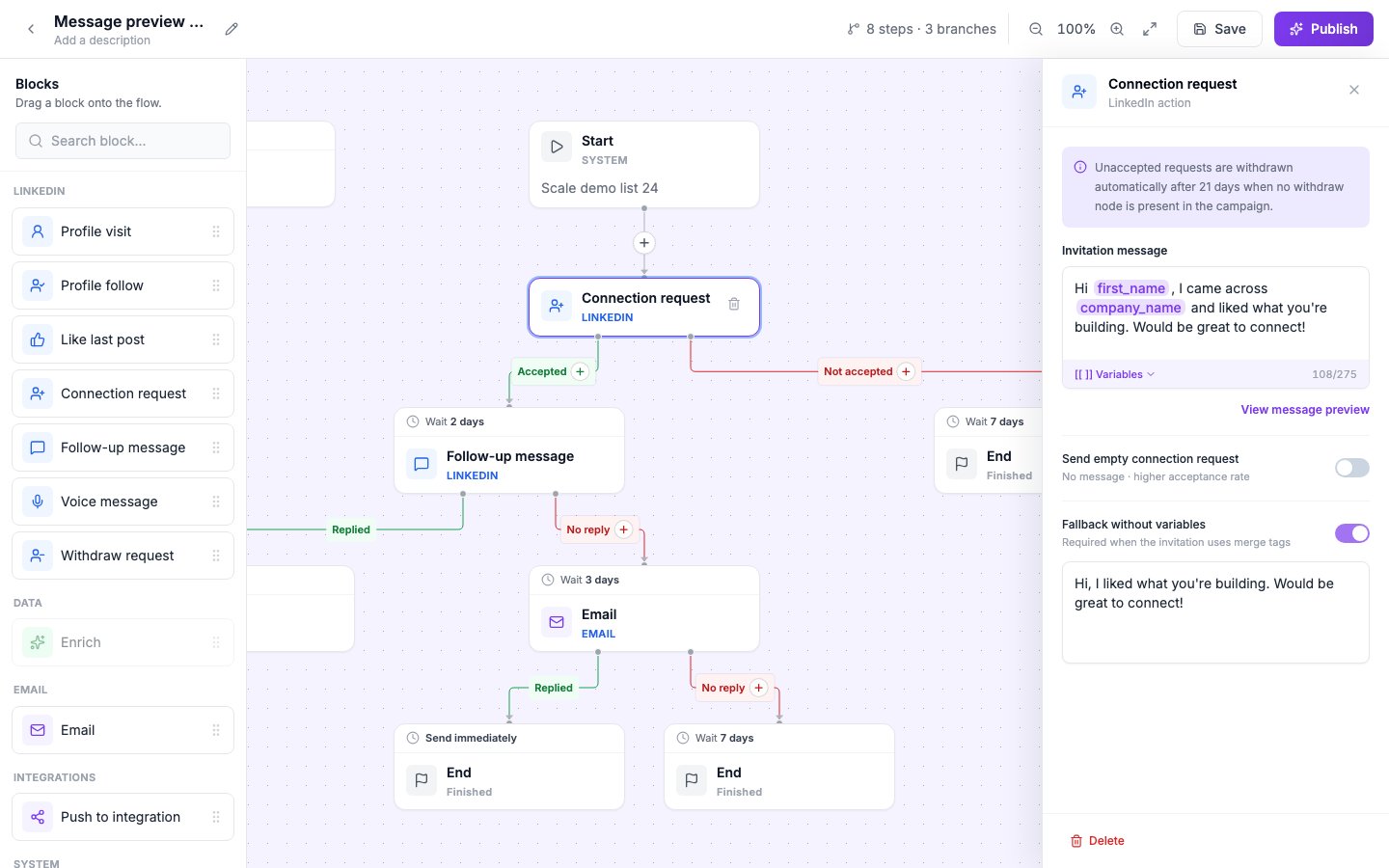
Preview panel on a Connection request step.
Open the preview
1
Open the step
Select the step in the Sequence tab.
2
Select Preview
The modal picks the first three leads from the Start step’s lead list.
3
Switch between leads
Each lead appears in its own tab with the real variables filled in.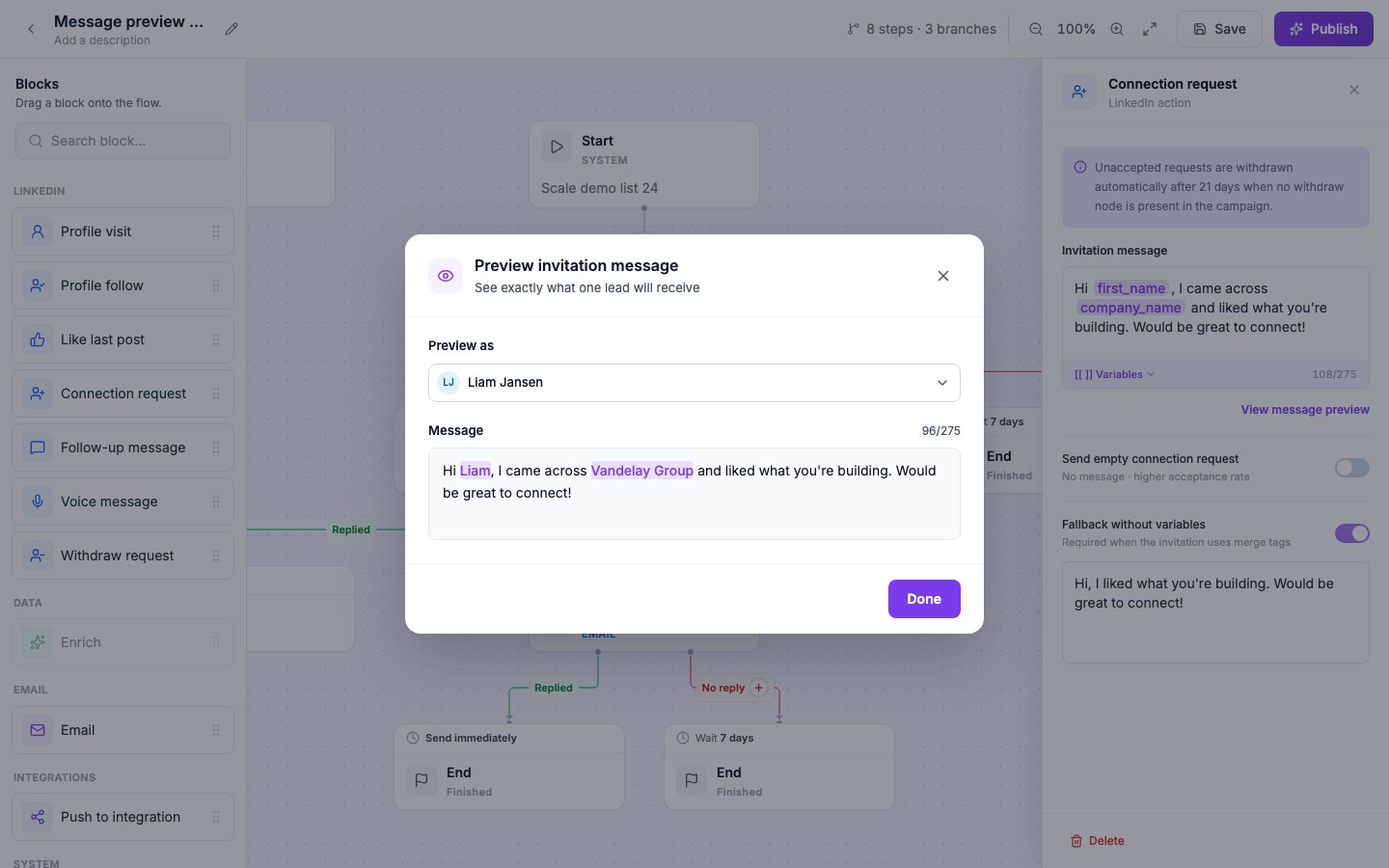
Supported steps
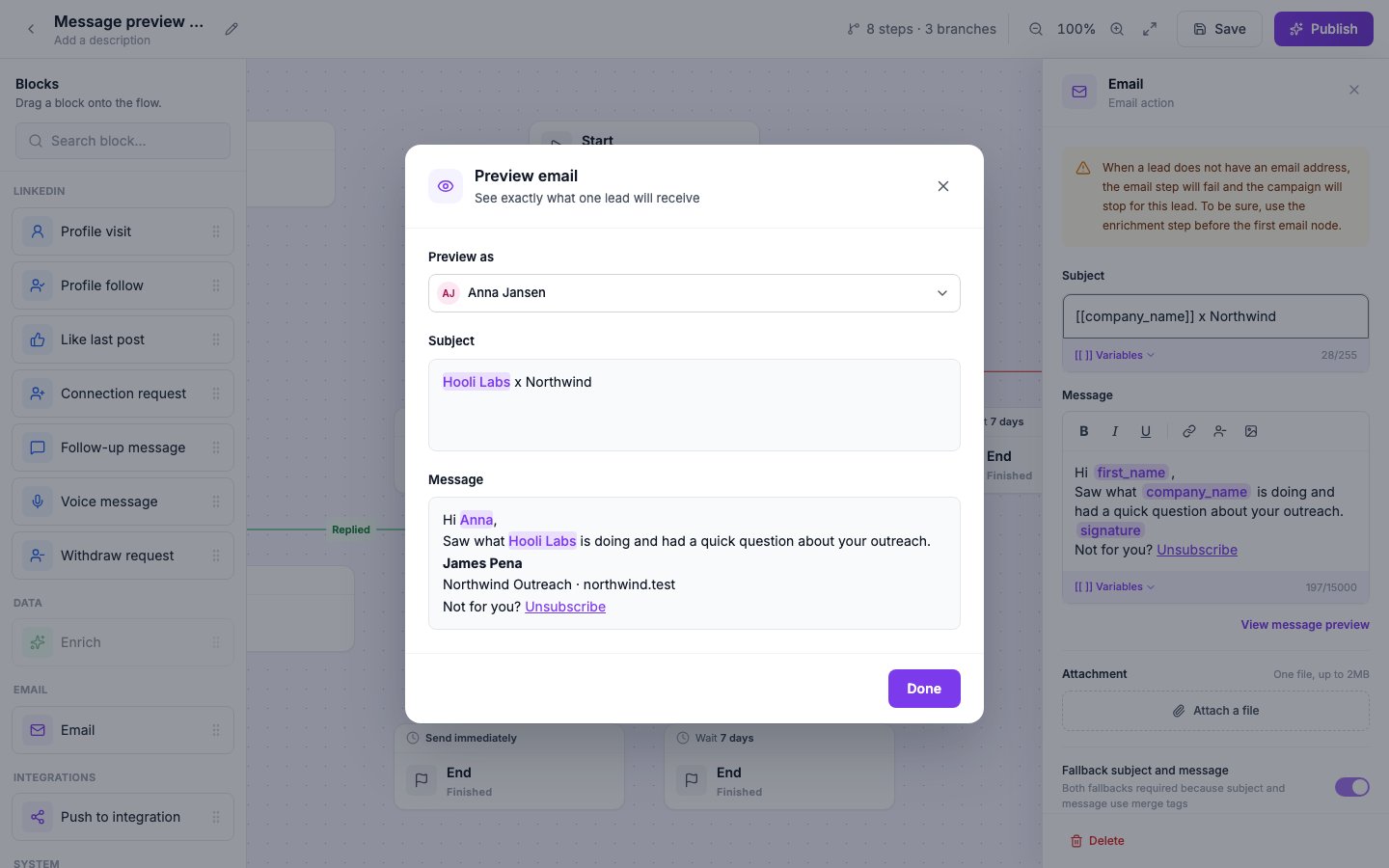
Email preview with the sender's signature.
Lead picker
Need a specific lead? Open the picker and search by name. Picked leads are marked in the list.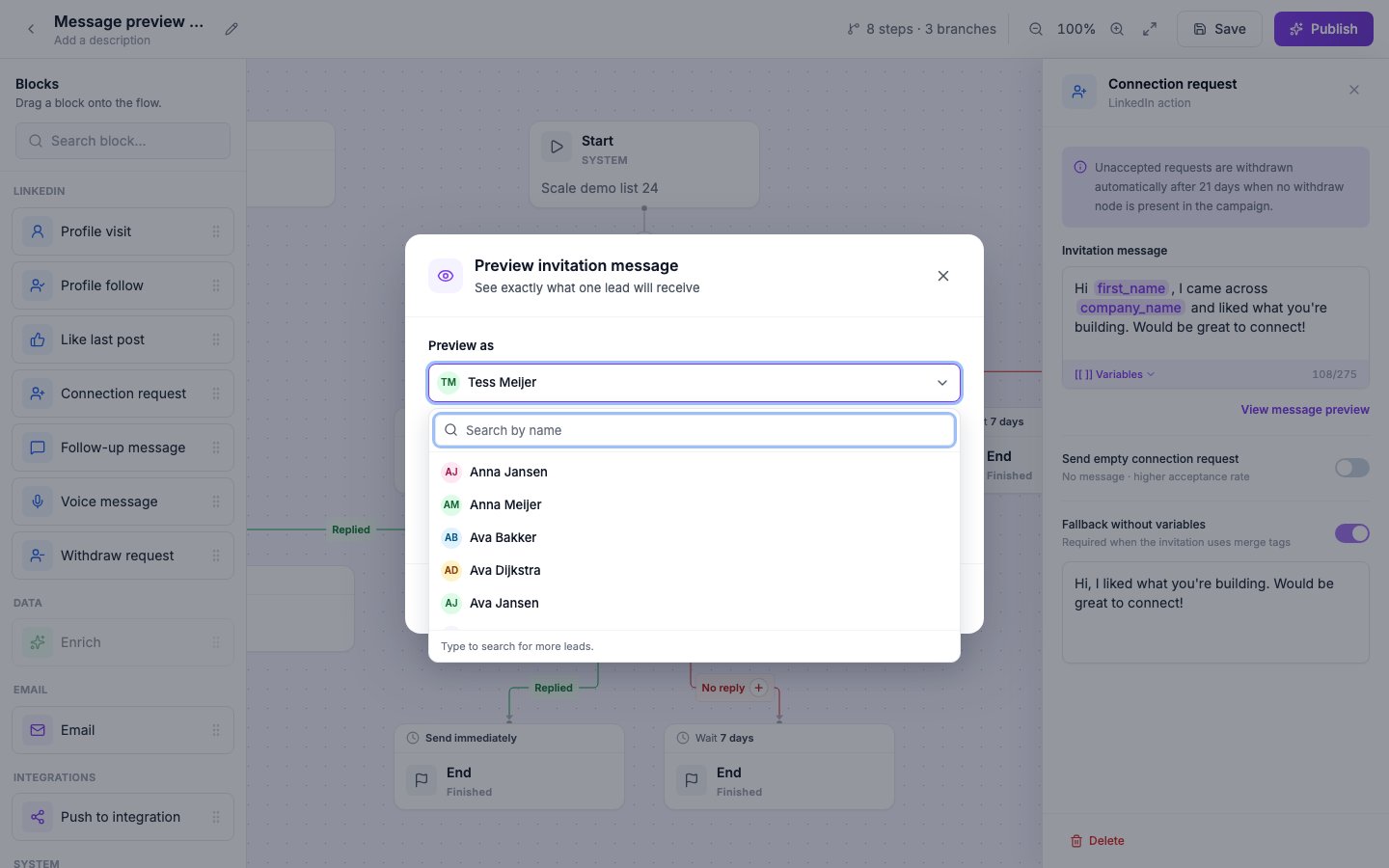
Pick any lead from the Start step's list.
Fallbacks and gaps
- A variable with no value falls back to the text in its personalization editor; the preview shows the fallback in grey.
- An email step with no subject shows the subject fallback from the step above.
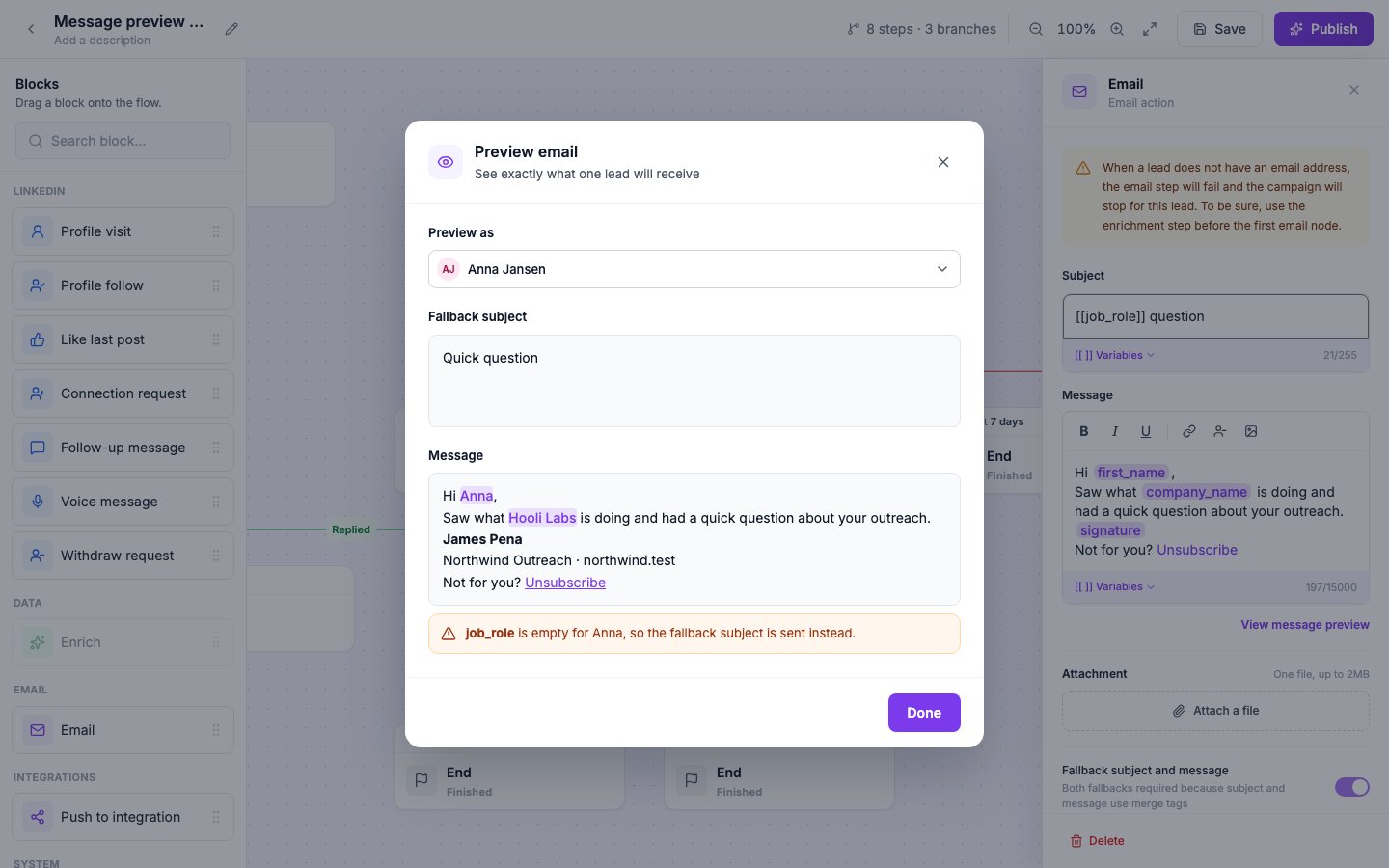
Subject fallback shown in the preview.
When Preview is disabled
Preview stays disabled while the Start step has no lead list, and while the step has nothing to send (empty message, missing template). Pick a list and fill the step in, then the button turns on.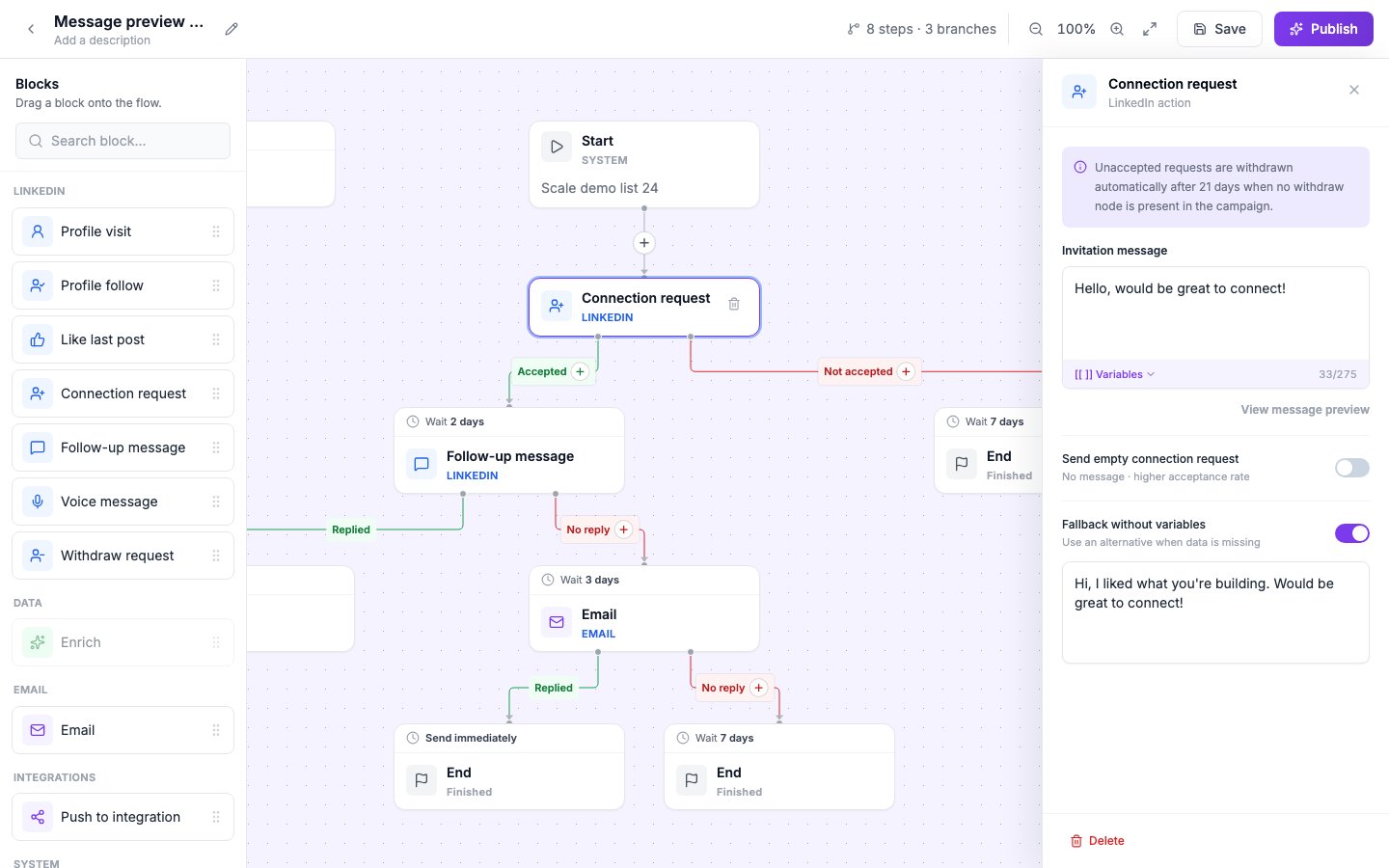
Preview is off until the step has content.
Preview runs read-only. Nothing is sent and the lead’s state does not change.