

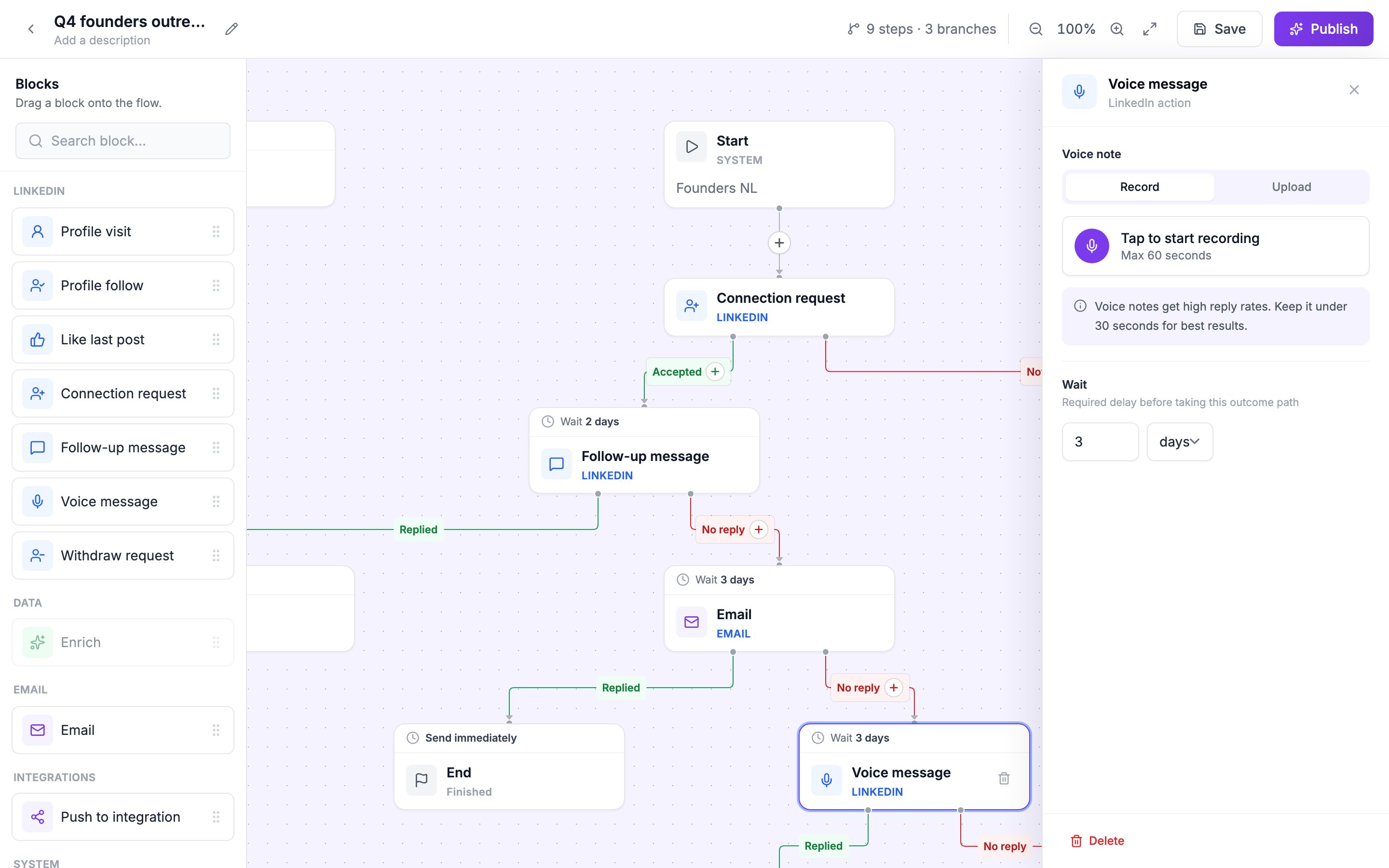
A Voice message step after an email that got no reply.
Add a voice message
1
Place the block
Drag Voice message from the LinkedIn group onto the flow. It’s greyed out in spots where it can’t run.
2
Record or upload
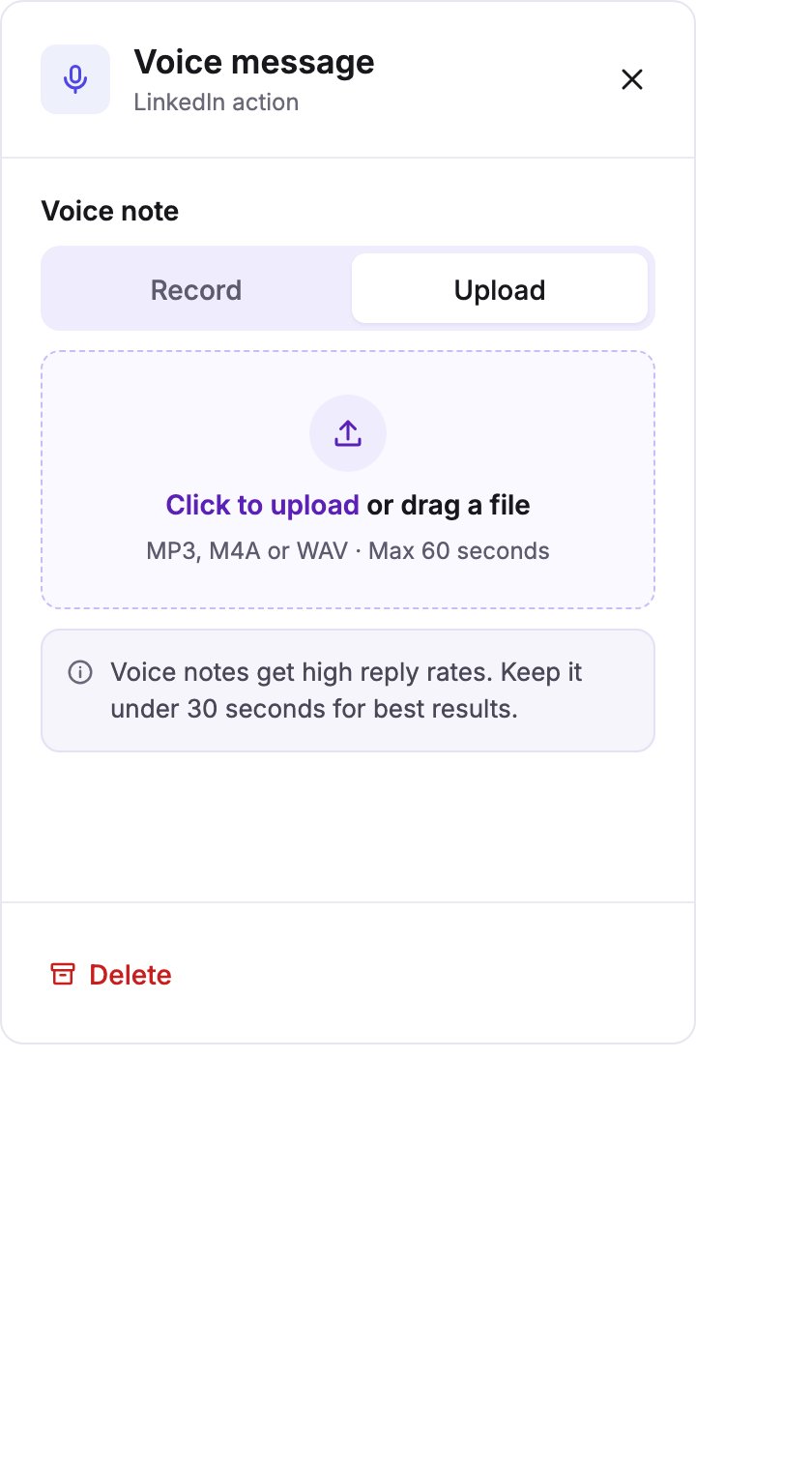
Choose Record to record in your browser, or Upload to use an audio file. A voice note can be up to 60 seconds, and an uploaded file up to 12 MB. Trim the start and end before you save.
3
Set the wait
Under Wait, set how long to wait before this step runs.
- Record
- Upload
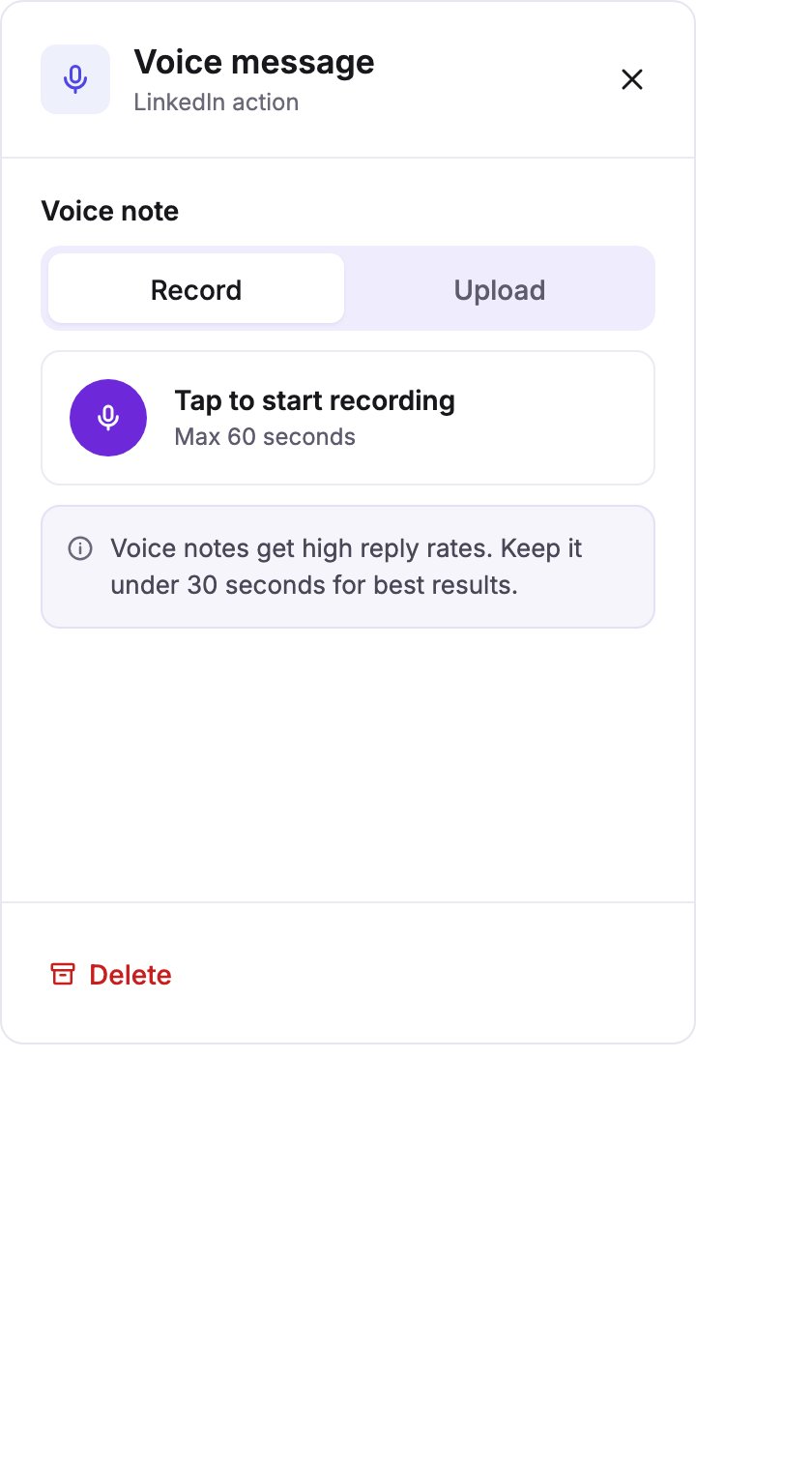
Idle, ready to record.
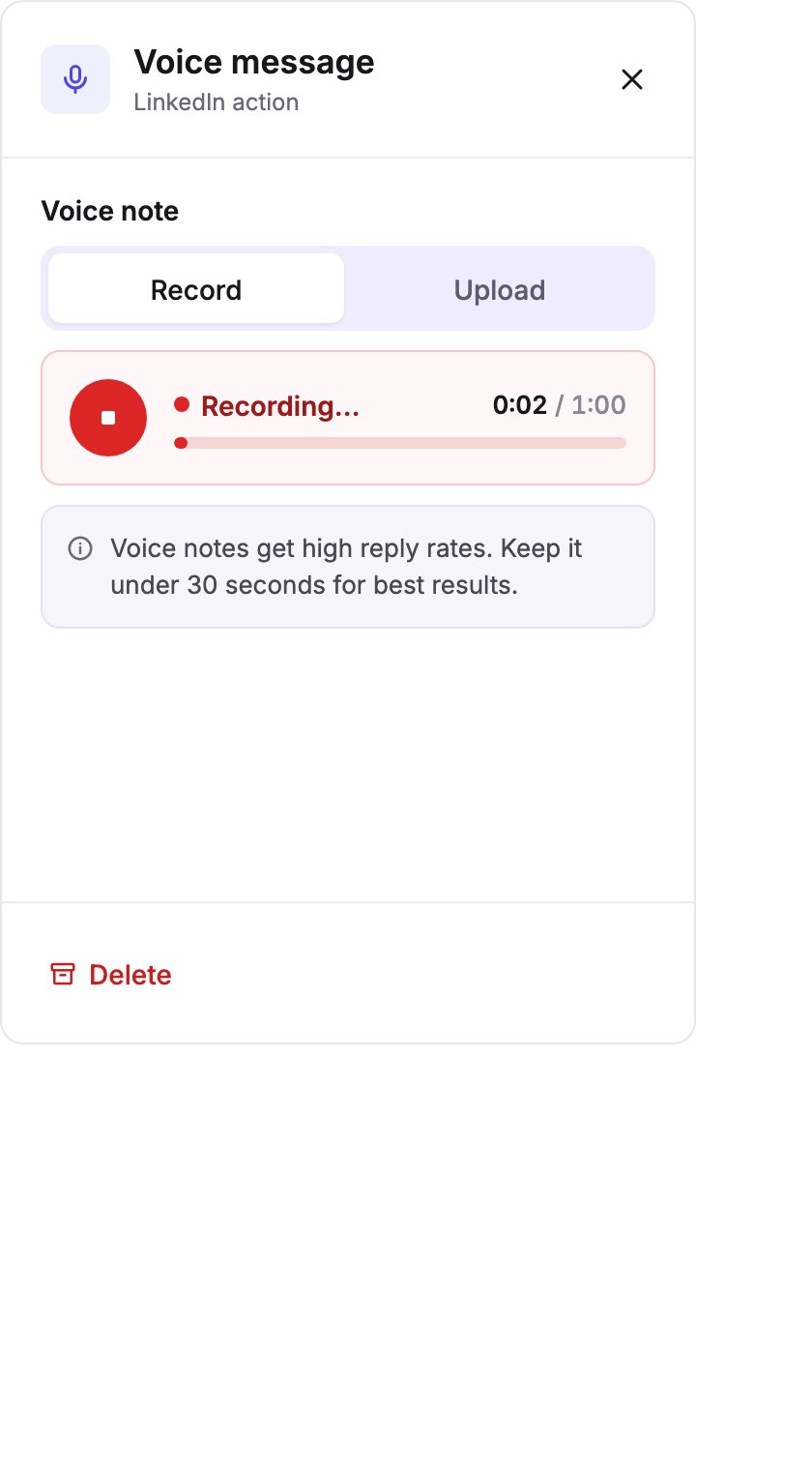
Recording, with a live waveform.
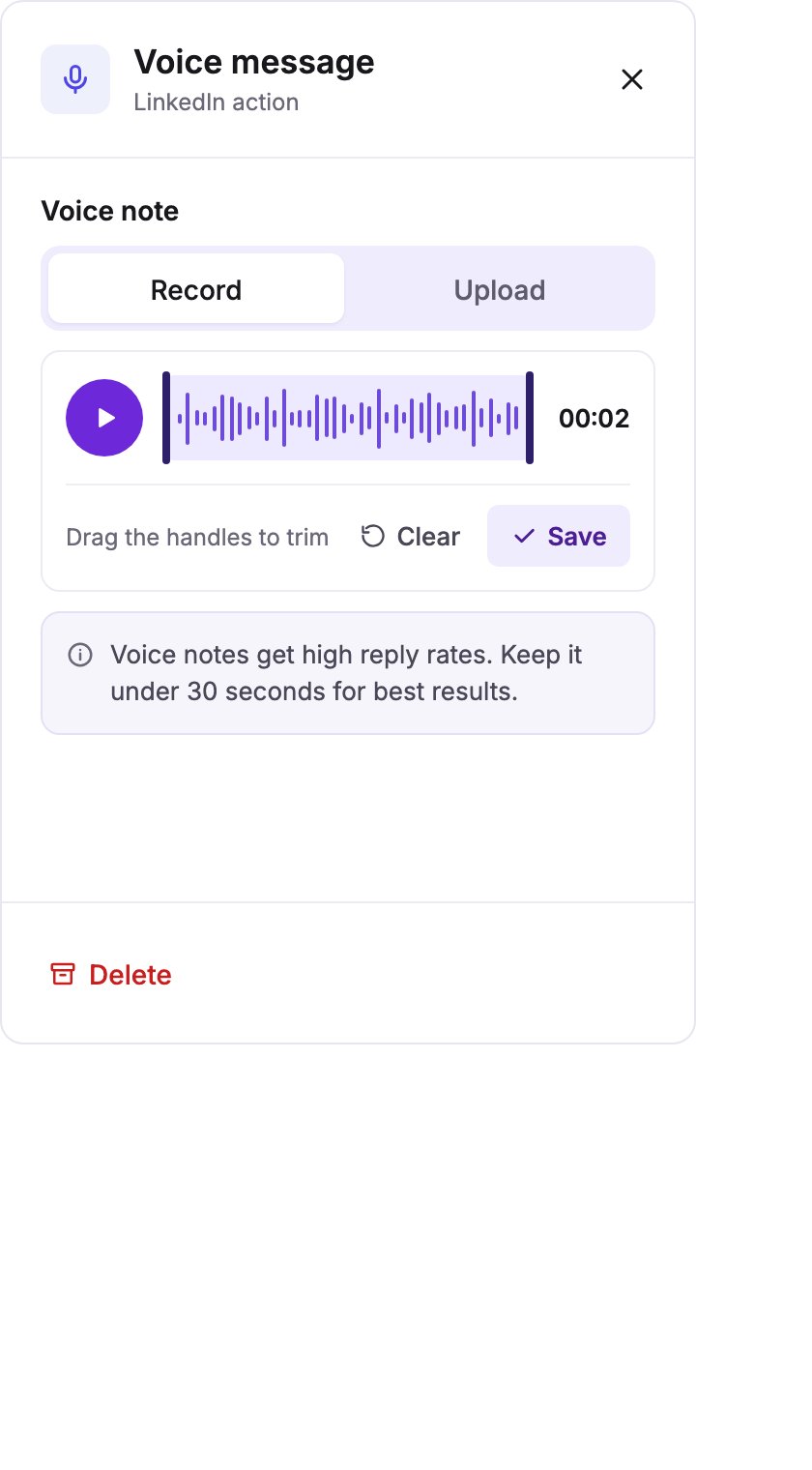
Trim the start and end before you save.
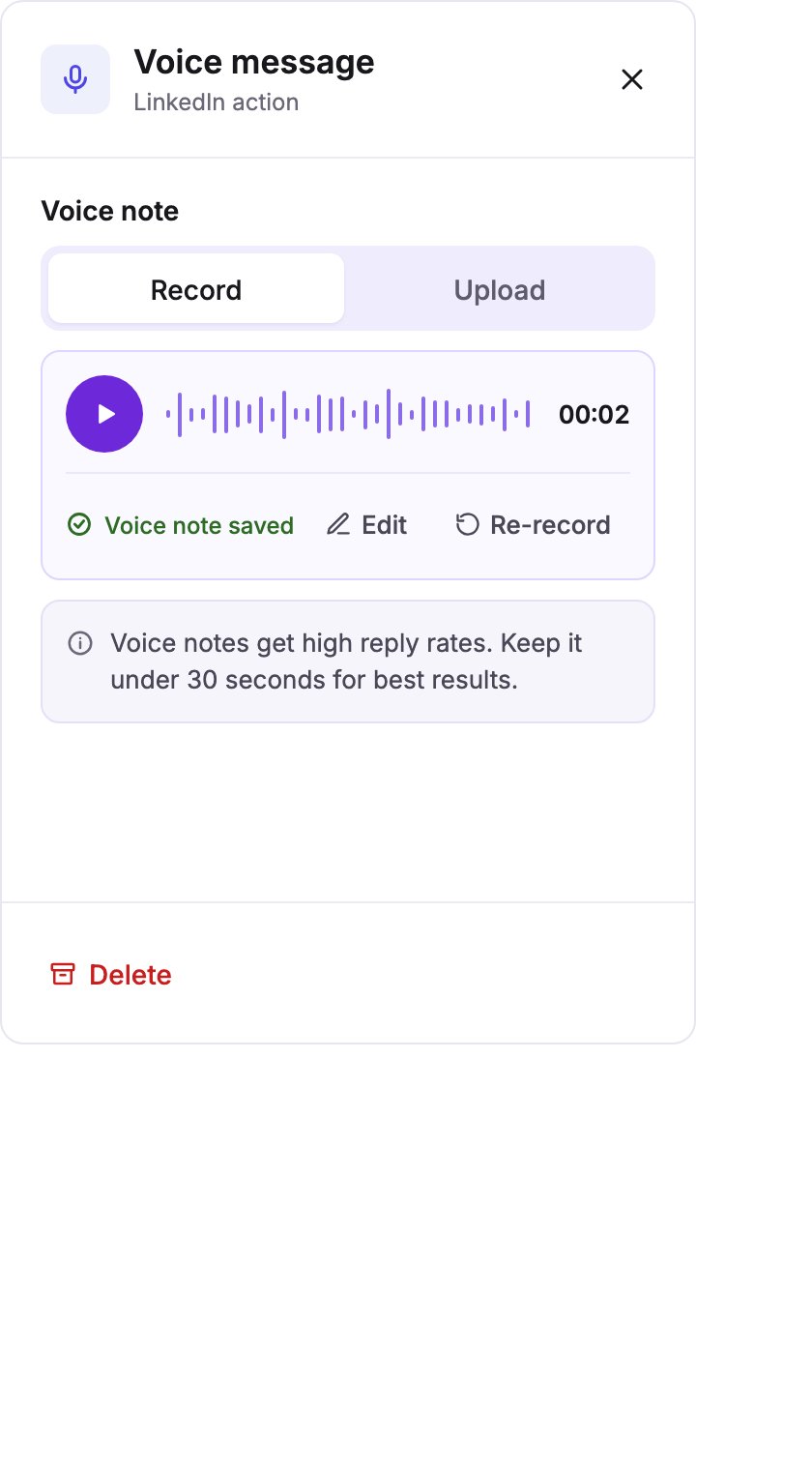
Saved. Review and re-record as many times as you need.
Allow microphone access
Before you can record, the browser asks for permission to use your microphone. Pick your browser below.- Chrome and Edge
- Safari
- Firefox
1
Select Record
A small dialog opens just under the address bar.
2
Select Allow
3
Blocked by mistake?
Select the padlock on the left of the address bar, open Site settings, set Microphone to Allow, then reload the page.
On macOS the browser also needs system permission. Open System Settings → Privacy & Security → Microphone and tick your browser.
Tips for a good voice note
- Keep it under 30 seconds. Short notes get the best reply rates.
- Say the lead’s first name early. It sets the tone that the note is personal.
- Record in a quiet room, close to the mic. Wired headsets are usually the cleanest.
- Say one thing. A voice note is for curiosity, not a full pitch.
Delivery
Delivery happens through the LinkedIn account that owns the step, in the same Browserbase session that sends every other action. A voice note counts as one action in the sender’s daily activity budget.Voice messages run in workspaces where the feature is turned on for you. If you don’t see the block, ask your workspace admin.